

- Publishing integrations send finished articles straight to your website.
- Search data connections bring in your real Google and Bing performance.
Publish your articles
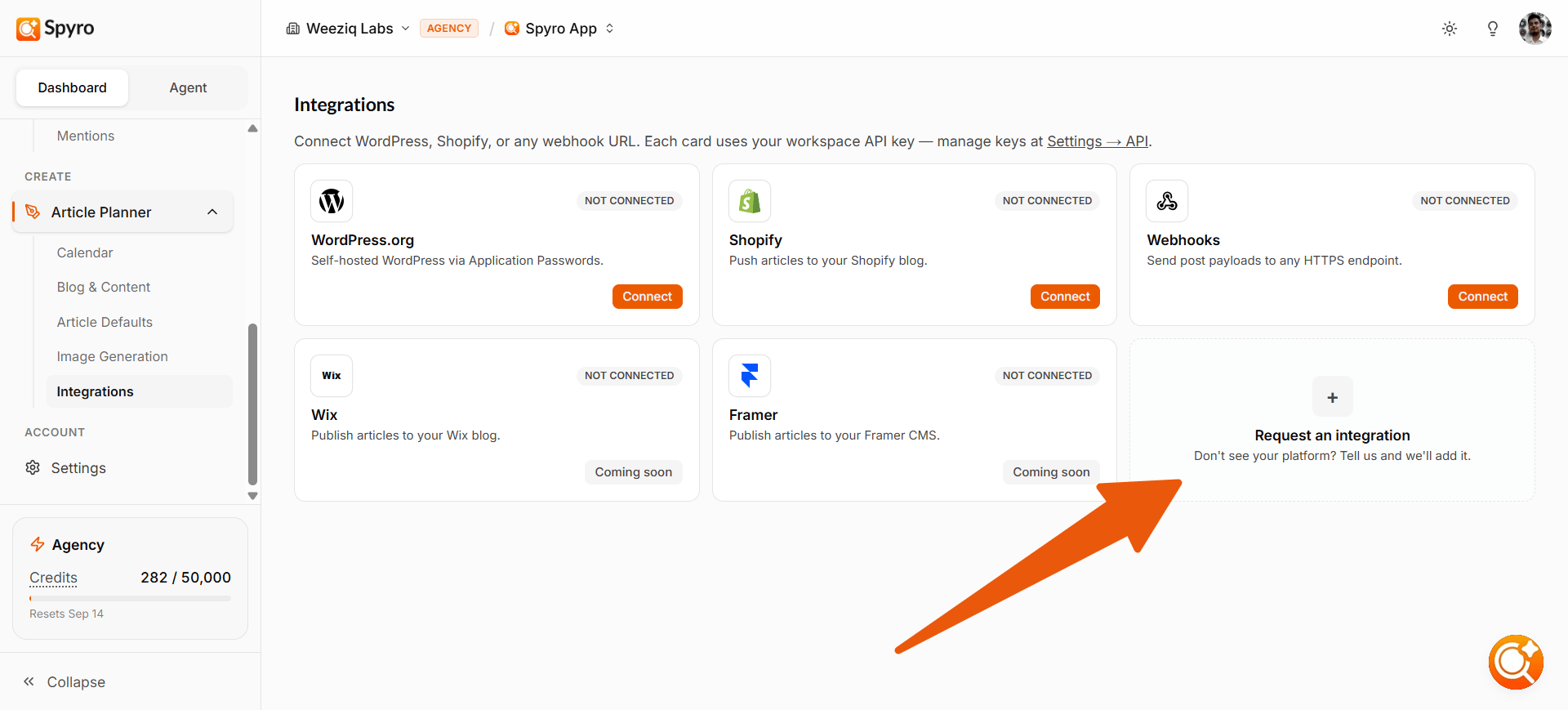
Open Article Planner → CMS Integration in the sidebar. (You can also get there from your profile menu, top right, under Integrations.) Each website (workspace) has its own integrations.
Don’t see your platform? Use the Request an integration card to tell us.
Starter allows 2 connected integrations per workspace; Pro and Agency allow 5.
Connect WordPress (self-hosted)
WordPress connects through the free Spyro Autopilot plugin and your workspace API key.1
Create an API key
In Spyro AI, open Settings → API keys and create a key. Copy it: you’ll paste it into WordPress. Only workspace admins can create keys.
2
Install the plugin
On the CMS Integration page, choose Connect on the WordPress.org card. Install and activate the Spyro Autopilot plugin from WordPress.org (or use Download .zip to upload it yourself).
3
Paste your key
In your WordPress admin, open Settings → Spyro Autopilot and paste your workspace API key.
4
Connect
Click Connect to Spyro in the plugin. Back in Spyro AI, the dialog shows Plugin connected once WordPress has registered.
The WordPress.org card still says “via Application Passwords”. That text is out of date: the plugin and API key steps above are the current way to connect.
Connect Shopify
1
Enter your store address
On the CMS Integration page, choose Connect on the Shopify card and enter your store address, for example
my-store.myshopify.com.2
Approve the connection
Click Continue with Shopify and approve the request in Shopify. Spyro AI then publishes articles to your Shopify blog.
Alternative: connect with a custom app token
Alternative: connect with a custom app token
- In Shopify, go to Settings → Apps and sales channels → Develop apps and create an app.
- Under Configure Admin API scopes, enable
read_content,write_contentandwrite_files. Nothing else is needed. - Install the app and copy its Admin API access token (it starts with
shpat_). - In Spyro AI, paste the token, click Load blogs, choose the blog under Publish to blog, and click Connect.
Connect a webhook
Use a webhook if your site runs on a system without a ready-made integration. Spyro AI sends each published article to the web address you give it. Ask whoever built your site for the right address.1
Make sure you have an API key
Webhook deliveries are signed with your workspace API key, so create one first under Settings → API keys if you don’t have one yet.
2
Add the address
Choose Connect on the Webhooks card, paste the address (it must start with
https://), add an optional label, and click Connect.post.published event containing the full article: title, slug, HTML and Markdown, meta title and description, keywords, featured and in-article images, structured data and the publish date.
Check that publishing works
Each integration card shows its status: Connected, Failing, Paused or Not connected. An integration turns Failing after 3 deliveries in a row fail. Choose Manage on a connected integration to see its delivery history (time, event, status and duration), send a test with Send test, or Disconnect it.Connect your search data
Connect Google Search Console and Bing Webmaster Tools on the GSC & Bing page to bring in your real clicks, impressions, positions and index data. Both connections are read-only. See GSC & Bing.API keys
An API key is a secret code that lets the Spyro Autopilot plugin and webhook deliveries connect to your workspace. Manage keys under Settings → API keys:- You can keep up to 3 keys per workspace.
- Only workspace admins can create or delete keys.
- A key can register and manage this workspace’s publishing integrations and read its published articles.
Use Spyro AI inside your AI apps
Want to ask Claude, ChatGPT, Gemini or Cursor about your rankings and audits? Connect the Spyro AI MCP server with one web address. See MCP server overview.Related
AI writer
Publish drafted articles to your connected website.
Content settings
Turn on auto-publish and publish-as-draft.
GSC & Bing
Connect Google Search Console and Bing Webmaster Tools.
Workspace settings
Manage API keys and other workspace settings.