

1. Create your account
1
Sign up
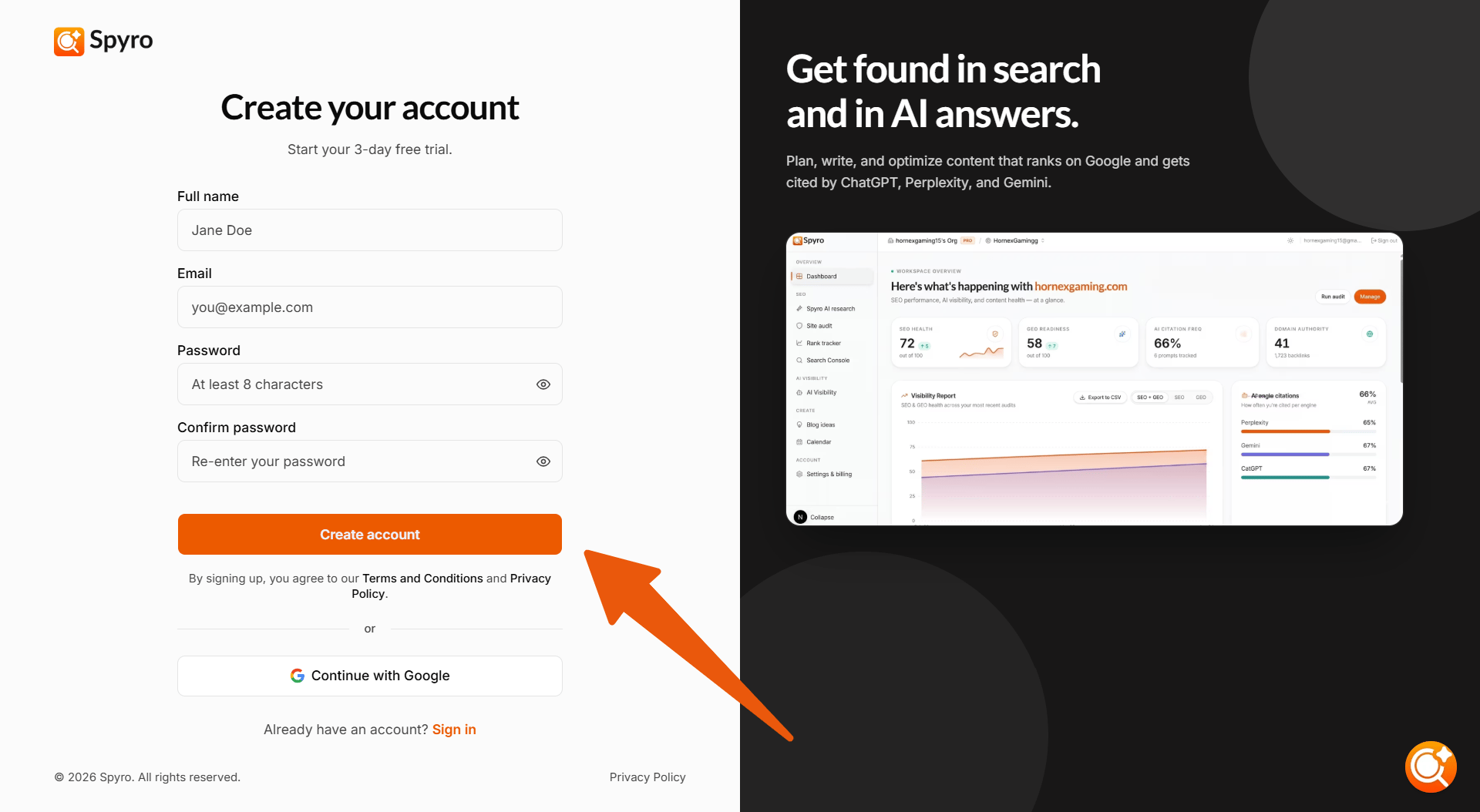
Open the sign-up page and enter your full name, email and a password (at least 8 characters), then choose Create account. Or choose Continue with Google to skip the password.
2
Confirm your email
Spyro AI emails you an 8-digit code. Type it in to confirm your address; it submits as soon as all 8 digits are entered. If it doesn’t arrive, choose Resend code. If you signed up with Google, you skip this step.
2. Choose a plan and start your trial
Next, you pick Starter, Pro or Agency and complete a secure checkout. Your 3-day free trial starts here: you enter your card, but you aren’t charged until the trial ends, and you can cancel any time before then. If you’ve already had a free trial, billing starts right away instead. See Plans & billing for what each plan includes and how the trial works.3. Set up your first workspace
A short wizard walks you through setup. You can go back to any earlier step.1
How you'll use Spyro
Choose For my brand (a single site) or For my agency (several client brands). Agencies also enter their agency name. You only see this step for your organization’s first workspace.
2
Your website and market
Enter your website address (for example
example.com), choose your Target market (country), and click Analyze website. Spyro AI reads your homepage and sitemap, picks up your brand colors and logo, and starts finding your competitors.3
Your brand profile
Review what Spyro AI found: your brand name, brand colors, a short description of what your business does, your category, target market, language and Target Audience Segments. Edit anything that’s off.
4
Your competitors
Review the competitors Spyro AI found. Add any it missed by entering their website, or remove ones that don’t fit. If the search didn’t work, choose Retry.
5
AI search prompts to track
Spyro AI suggests buyer questions to ask AI assistants (10 on Starter, 20 on Pro and Agency). Keep the ones that match how your customers search, remove the rest, or add your own. Then choose Continue with N prompts. Prompts are checked weekly by default.
6
How did you find us?
Tell us how you heard about Spyro AI, then choose Finish setup. You only see this step for your organization’s first workspace.
Spyro AI only reads your public pages, the same ones any visitor can see. Everything it fills in is a draft you can edit, now or later in Workspace settings.
4. Your workspace is ready
After Finish setup, Spyro AI starts the heavy lifting in the background:- Reading your pages and content
- Running your first SEO and Core Web Vitals audit
- Running your first AI readiness (GEO) audit
- Checking your domain authority (Ahrefs Domain Rating)
- Running your first AI search prompt checks
Done-For-You setup (Pro and Agency)
On Pro and Agency, the ready screen for your first workspace asks: “Would you like us to set up your workspace for you and schedule 30 blog articles?” Choose Yes, I want and our team will be in touch, or No, I am fine to carry on yourself.Landing in your workspace
Your dashboard shows a setup banner and a content-plan progress note while the background work runs. Cards fill in on their own as results come in, so there’s no need to refresh.Related
Your dashboard
Explore the home base of your new workspace.
Run your first audit
Check your site health and get actionable fixes.
Workspace settings
Update your brand profile, audience and competitors.
Plans & billing
Learn how the trial, credits and plans work.