

Why use it
A few minutes here pays off everywhere. When Spyro AI knows your time zone, your audience and your competitors, your scheduled checks run at the right time and your articles sound right for the people you’re trying to reach.Account
A summary of you in this workspace: the email you signed in with, and whether you’re an admin or a member here. To change your password, use Forgot password? on the login page. If you sign in with Google, manage your password in your Google account.The Account tab currently says “Signed in with Google” for every account, including email-and-password accounts.
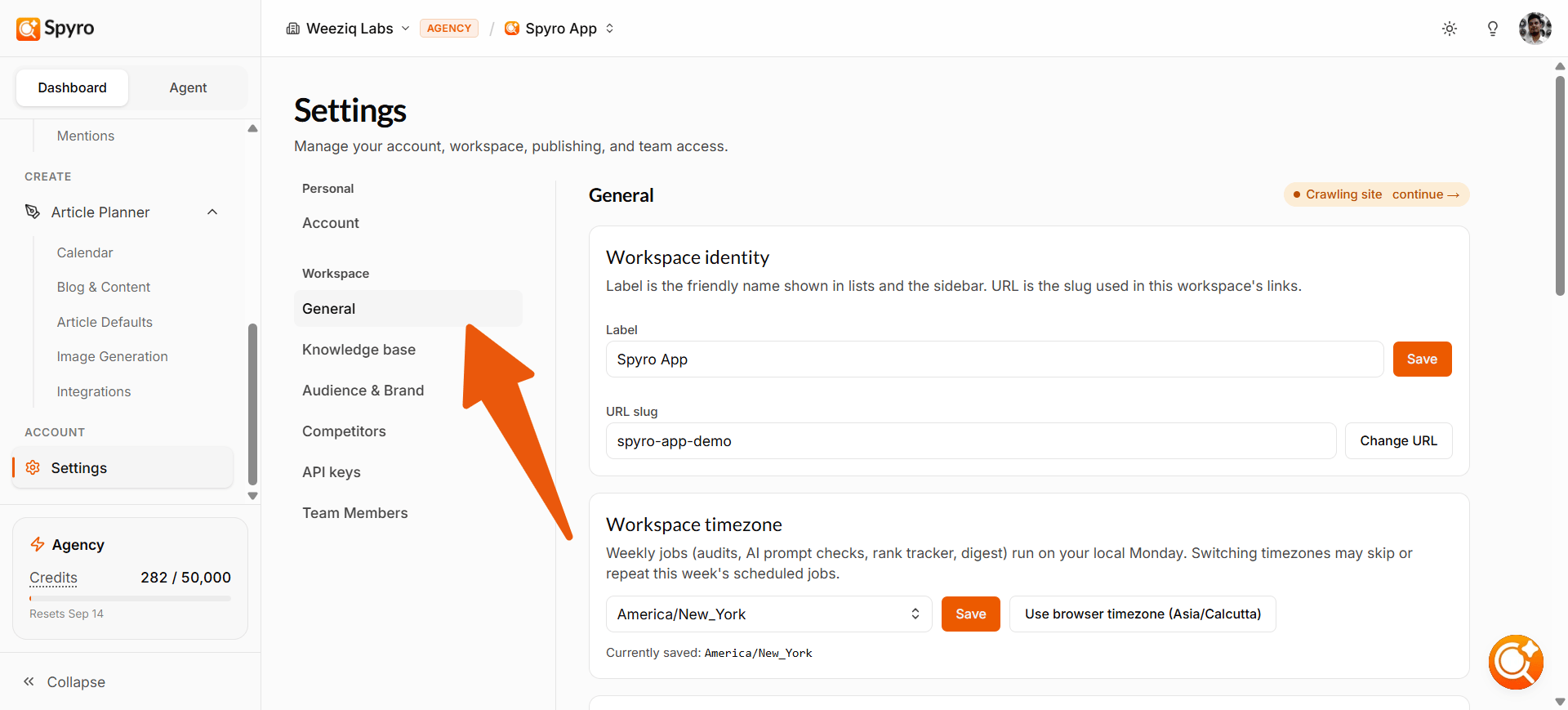
General
1
Workspace identity
Give the workspace a friendly label, so it’s easy to spot when you switch between websites, and change its URL slug (the name used in this workspace’s links) with Change URL.
2
Workspace timezone
Choose your time zone and choose Save, or use your browser’s time zone. Your weekly audit, prompt checks, rank checks, automatic article writing and the weekly digest email all run on this local time.
3
Re-crawl this site
Choose Re-crawl now to have Spyro AI read your latest pages again, so your audits, tone and brand profile stay up to date.
4
Tone and brand profile
See the tone profile and brand profile (colors and style) Spyro AI learned from your site, and refresh either one after your site changes.
5
Business profile
Check your brand name, primary color, language and target market.
Usage
Usage & Credits lists what this workspace spent credits on this cycle: each action, its category, how many times it ran, the credits each and the total. To see usage across all workspaces, open your organization’s Usage page. See Plans & billing.Knowledge base
The list of every page Spyro AI found when it read your site, with each page’s SEO and GEO scores. Choose a row to open that page’s audit report. While a crawl runs, a progress note shows how far it has got.Add pages yourself
Spyro AI doesn’t always find every page. Under Add pages manually, paste up to 10 page addresses, one per line, and choose Add & crawl. Spyro AI reads and scores each one right away, for free. Pages that aren’t on your site, or that can’t be read, are skipped and reported back to you.If you haven’t run an audit yet, this tab invites you to run your first site audit, the scan that fills the page list.
Audience & Brand
Tell Spyro AI who you write for, and every article gets sharper:- Audience segments: short tags for the people you sell to. Spyro AI fills these in from your site; edit, remove or add your own.
- Business description: a paragraph on what you do, who you serve, the problem you solve and what makes you different.
The competitors you track
The rival websites Spyro AI tracks for this workspace. Spyro AI found these during setup and discovers more as you research keywords. Add a competitor by entering its website, or remove ones that don’t matter. Keep the list to the rivals that really count: they’re suggested when you set up a competitor research scan.API keys
An API key is a secret code that lets the Spyro Autopilot WordPress plugin and webhook deliveries connect to this workspace. Most people only need one, for WordPress.1
Create a key
Choose New key and give it a name so you can tell your keys apart. You can keep up to 3 at a time.
2
Use it
Copy the key and paste it into the WordPress plugin. See Integrations.
3
Remove it
Choose Delete key to cut off access instantly.
Team Members
Workspace admins can invite people to this workspace and remove them. See Team members.Related
Team members
Invite teammates and manage roles.
Plans & billing
Manage your plan and see credit usage.
Integrations
Connect your website, Google Search Console and Bing.
Content settings
Set your article style, images and auto-publish.