

Roles in plain terms
Roles work at two levels: your organization (which holds your plan, credits and all your workspaces) and each workspace.Organization roles
Workspace roles
Owners, admins and managers are automatically admins of every workspace. People with the Member organization role are added to individual workspaces as either:- Admin: can change that workspace’s settings, manage its team and API keys, and delete it.
- Member: can work in the workspace but can’t change its settings or manage its team.
Only the owner can switch the plan. Owners and admins can open billing to update the card or download invoices. See Plans & billing.
Invite people to your organization
1
Open Members & invites
Open your profile menu (top right) at the organization level and choose Members, or go to your organization’s settings and choose Members & invites.
2
Enter their email and pick a role
Under Invite a teammate, type their email and choose Admin, Manager or Member.
3
Send the invite
Spyro AI emails them a link and copies it for you. If the email can’t be sent, use Copy link to share it yourself. Unaccepted invites are listed under Pending invites.
Invite people to one workspace
1
Open the workspace's team
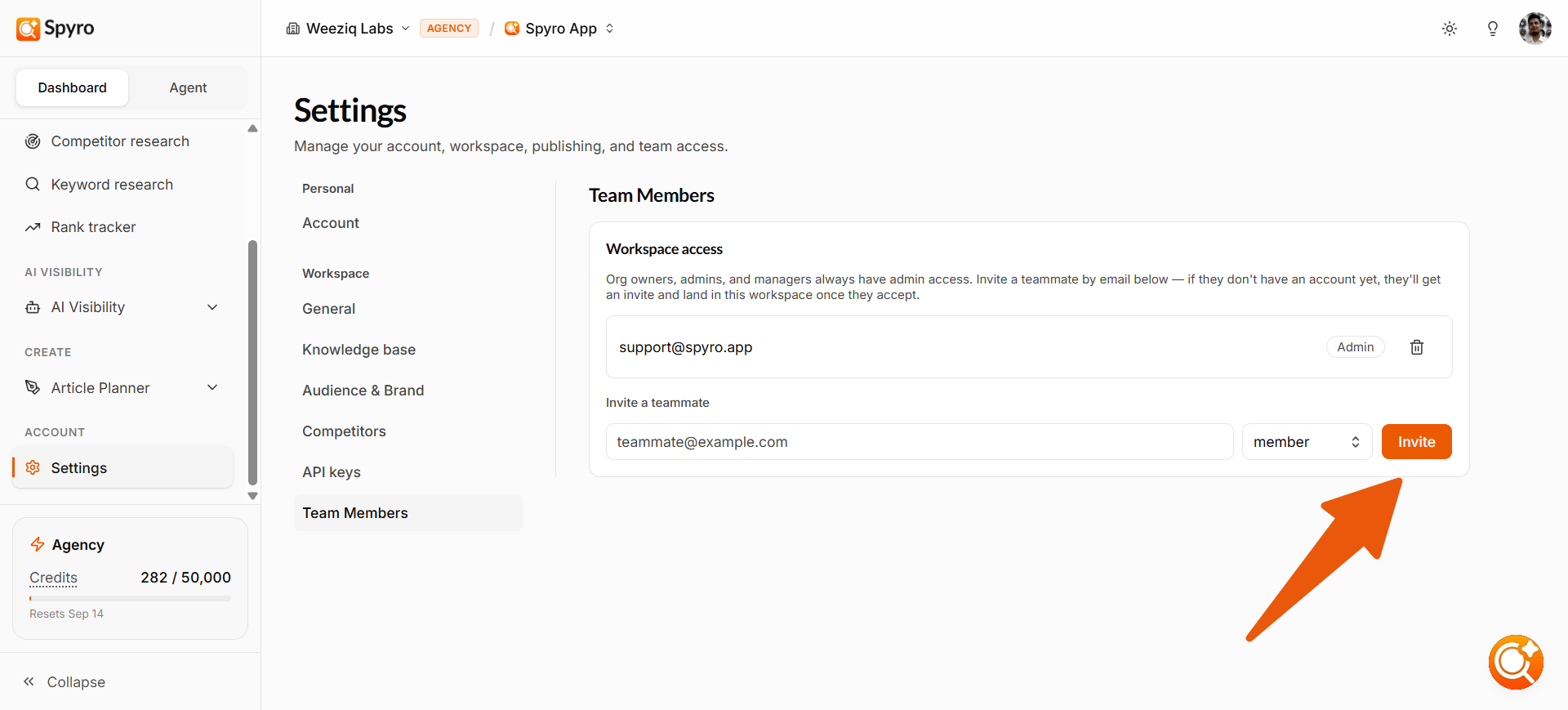
In the workspace, open Settings → Team Members. (Only workspace admins see this tab.)
2
Invite them
Enter their email, choose Admin or Member, and send the invite. If they don’t have a Spyro AI account yet, they create one from the invite and land straight in this workspace.
Accepting an invite
If you’re the person being invited:1
Open the link
Open the invite link in your email.
2
Sign in with the invited email
Use the same email address the invite was sent to. A forwarded link won’t work for a different account. If you don’t have a Spyro AI account yet, you’ll create one first.
3
Start working
You land in the workspace you’ve been given access to.
Changing roles and removing people
- Change a role: on Members & invites, choose a new role from the dropdown next to a teammate.
- Remove someone from a workspace: on that workspace’s Team Members tab, remove them. They keep access to anything else they were given.
- Remove someone from the organization: remove them on Members & invites so they can’t reach anything.
- Cancel an invite: revoke any invite that hasn’t been accepted yet.
- Transfer ownership: the owner can hand the organization to another member, and becomes an admin.
The owner can’t be removed. Only the owner and admins manage organization members.
Related
Workspace settings
Manage each website’s settings and API keys.
Plans & billing
Who can manage billing, and what each plan includes.
Set up your account
How new accounts and workspaces are set up.
Questions and answers
Answers about plans, credits and access.